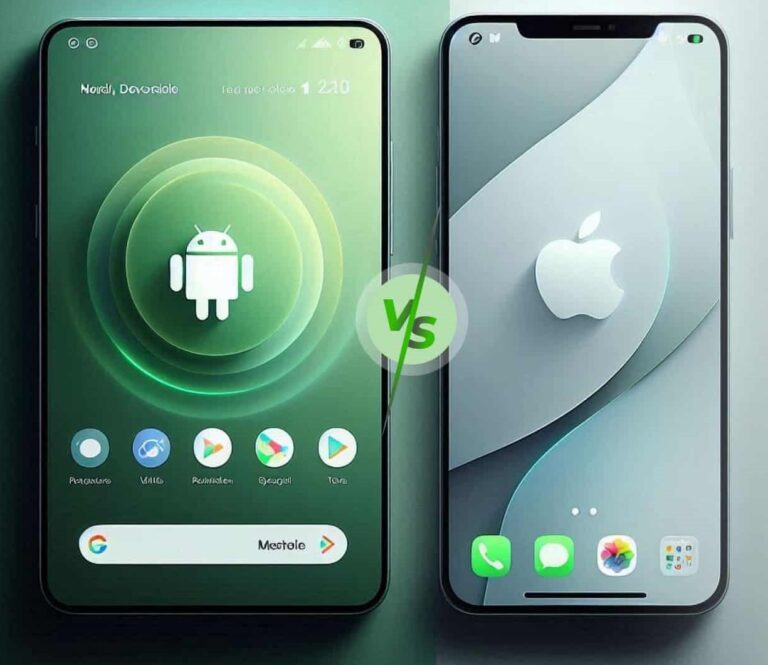
Hidden Features: Lesser-Known Tricks in iOS 17 and Android 14
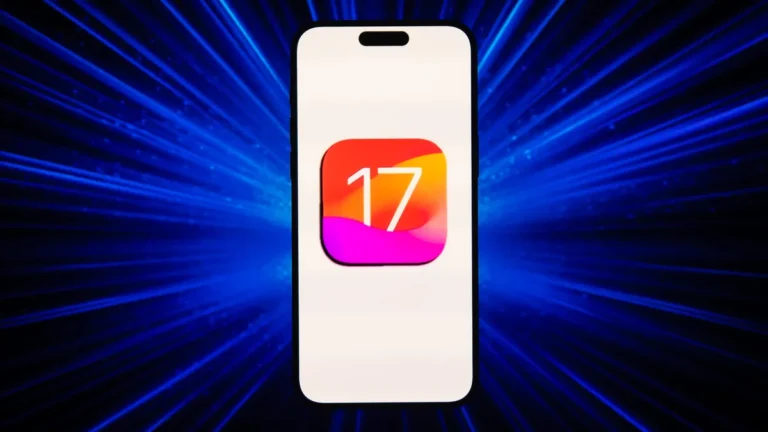
Every major operating system release comes with headline features that dominate the keynote stage—Contact Posters and StandBy mode for iOS 17, enhanced privacy controls for Android 14. But beneath the surface lie dozens of smaller improvements that can genuinely change how you use your phone every day. Some are intentionally hidden, others simply never got the attention they deserved.
This guide uncovers the best hidden features in both iOS 17 and Android 14, organized by what they actually do for you—privacy, productivity, customization, and pure fun.
Part 1: Privacy and Security Features You Didn’t Know You Had
Both Apple and Google have been quietly adding privacy tools that put more control in your hands. Here are the ones worth enabling.
iOS 17
Android 14
Part 2: Productivity Boosters Hiding in Plain Sight
Small workflow improvements can save you hours over time. Here are the ones worth building into your daily routine.
iOS 17
Interactive Widgets
The biggest quality-of-life improvement in iOS 17 is interactive widgets. Instead of tapping a widget only to be launched into the corresponding app, you can now perform actions directly:
Music widget: Play, pause, and skip tracks without opening Apple Music
Home widget: Turn lights on and off, adjust thermostats
Reminders: Check off completed tasks
Podcasts: Control playback
To add them, press and hold an empty area on your home screen, tap the plus icon, and look for widgets with interactive indicators.
Offline Maps
Finally, Apple Maps supports offline navigation. Before heading into areas with spotty service, download specific regions for turn-by-turn directions, estimated arrival times, and place information—all without cellular data.
Enhanced Message Search
Searching through years of iMessage conversations used to be hopeless. iOS 17 adds powerful filters: you can now search by contact, link, photo, location, and more. Just pull down in Messages and type what you’re looking for, then use the filter buttons to narrow results.
Quick Crop in Photos
Instead of entering edit mode, simply zoom in on a photo and a “Crop” button appears in the corner for a few seconds. Tap it, and your zoom becomes the crop—perfect for quick social media exports.
Android 14
Notification History
We’ve all accidentally swiped away an important notification. Android 14 keeps a 24-hour log of every notification, even the ones you cleared. You can review, search, and reopen them.
Predictive Back Gesture
Android’s back gesture has always been a bit of a gamble—where exactly will it take you? Android 14 adds a predictive preview: when you begin swiping back, the system shows where you’re headed (previous screen or home), reducing navigation confusion.
Split Screen + Floating Windows
On larger phones, you can run multiple apps simultaneously:
Split screen: Two apps side by side (rotate to landscape for better viewing)
Floating windows: Turn any app into a movable, resizable window that floats over others
To activate, open Recents, tap the app icon, and select “Split screen” or “Open in pop-up view.”
Per-App Language Settings
Bilingual users rejoice. You can now set different languages for different apps—use your banking app in your native language while keeping work apps in English, all without changing your system language.
Part 3: Customization Tricks for a Personal Touch
iOS 17
Customizable Lock Screen Widgets
iOS 17 expands lock screen customization beyond what iOS 16 introduced. You can now place widgets based on your preferences, mixing weather updates, calendar events, and fitness stats in configurations that suit your daily routine.
Press and hold the lock screen, tap Customize, and add widgets from the gallery.
Contact Posters (Not So Hidden, But Worth Mentioning)
When you call someone, your chosen poster—photo, Memoji, typography—fills their screen. It’s a small touch that makes calling feel more personal. Set yours in the Contacts app or during caller ID setup.
Crossfade in Apple Music
If you’re the designated driver or party DJ, enable crossfade for smoother song transitions. Songs blend seamlessly rather than abruptly ending.
Android 14
Emoji Wallpaper Workshop
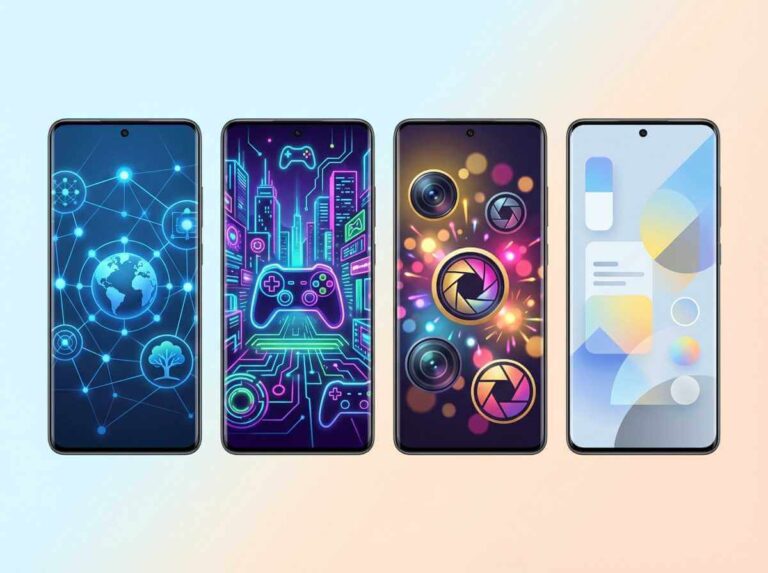
For pure customization fun, Android 14 lets you create wallpapers entirely from emoji. Choose your favorite emoji, arrange them in patterns, and generate a unique background.
Material You Color Palettes
Android’s theming engine automatically extracts colors from your wallpaper and applies them to system UI, supported apps, and even icon backgrounds. For deeper control, you can choose from generated palettes to match your mood.
Lock Screen Customization
Android 14 finally adds proper lock screen editing. Press and hold an empty space on your lock screen, tap “Customize,” and adjust clock style, shortcuts, and other visual elements.
**Regional Settings ]
Go beyond language: customize measurement units (Celsius/Fahrenheit), first day of week, number formats, and date displays to match your regional preferences—not just your system language.
Part 4: The Hidden Gems—Features You’d Never Think to Look For
iOS 17
Visual Look Up for Laundry Symbols and Car Dashboard Lights
Visual Look Up has quietly become incredibly useful. Take a photo of a clothing tag covered in laundry symbols, swipe up, and tap “Look Up Laundry Care”—your iPhone will decode every symbol, telling you exactly how to wash that delicate wool sweater.
Even better: the same feature works on your car’s dashboard warning lights. See an ominous orange icon? Snap a photo, use Visual Look Up, and get an explanation of what’s wrong and how urgent it is.
Personal Voice
Designed for accessibility but useful for anyone, Personal Voice lets you train your iPhone to speak in a synthesized version of your voice. Read 15 minutes of randomized prompts, and the on-device machine learning creates a voice clone that can speak anything you type.
Check In
When walking home alone or traveling to meet someone, use Check In in Messages. Your friend is automatically notified when you arrive safely. If you don’t progress toward your destination, your iPhone temporarily shares your location, battery level, and cell service status.
After starting a Check In, simply continue your journey—everything happens automatically.
Find Your iPhone in the Dark
If you’ve lost your iPhone in a dark room, you don’t need to fumble for the screen. Just say “Hey Siri, turn on my flashlight.” Your flashlight activates, guiding you to the device.
Collaborative Playlists
In Apple Music, invite friends to collaborate on playlists. They can add, reorder, and remove songs, and even react to tracks with emoji.
Android 14
The Space Exploration Easter Egg
Every Android version has a hidden game, and Android 14’s is a space exploration simulator. After activating it, you can pilot a tiny ship through a procedurally generated universe, visiting stars and planets with real astronomical data—star class, radius, mass, orbiting objects.
How to find it:
Settings > About Phone > Android Version
Tap “Android version” repeatedly until the logo appears
Long-press the logo until your phone vibrates and the ship appears
Drag your finger to fly through space—try reaching coordinates (0, 0) to visit the central star
There’s no way to “win.” It’s pure exploration, a love letter to Star Trek hidden inside your phone.
Use Your Phone as a Webcam
On Pixel phones (and others with Android 14), you can connect your phone via USB and use it as a high-quality webcam for your computer. Perfect for when your laptop’s built-in camera isn’t cutting it.
Connect your phone to your computer via USB
Tap the charging notification
Select “Webcam” under USB preferences
Choose your phone as the camera in your computer’s video settings
Quick Tap Gestures
Pixel phones let you double-tap the back of the device to perform actions: take screenshots, open apps, toggle the flashlight, summon the assistant. It’s like having a secret button you can access from any app.
Notification Flash Alerts
If you keep your phone on silent and worry about missing notifications, enable flash notifications. Your camera flash or screen will blink when alerts arrive—useful in meetings or when your phone is face-down.
RAM Expansion
On supported phones (especially Xiaomi and other Chinese brands), you can allocate some of your internal storage as additional virtual RAM. This helps keep more apps in memory for smoother multitasking.
Part 5: Hidden Features Comparison Table
Conclusion: The Best Features Are the Ones You Find Yourself
Both iOS 17 and Android 14 prove that mobile operating systems have matured beyond headline features. The real value lies in the hundreds of small improvements that solve everyday problems—decoding laundry symbols, preventing verification code clutter, turning your phone into a webcam, or just hiding a tiny spaceship game for when you’re bored.
The best way to discover more? Spend fifteen minutes exploring your settings. Tap through menus you’ve never opened. Long-press things. The features that become part of your daily routine are often the ones you stumble upon accidentally.
Which hidden feature will you try first?