The Complete Guide to Backing Up Your Data: From Theory to Bulletproof Practice
The Backup Wake-Up Call: Why “It Won’t Happen to Me” Is Your Biggest Risk
Imagine this: your laptop’s SSD suffers a sudden, silent failure. The family photos from the last decade, your financial documents, the novel you’ve been writing for two years—gone in an instant. Or consider the rising threat of ransomware, which doesn’t just steal your data but encrypts it, holding it hostage. Hardware fails. Software corrupts. Humans make mistakes (a misplaced rm -rf command can be devastating). Theft happens.
Data loss is not a question of if, but when. A robust backup strategy is the single most important—and most neglected—digital hygiene practice. This guide moves beyond the simplistic advice to “back up your files” and provides you with a professional-grade framework to protect your digital life against any conceivable disaster.
Part 1: Core Concepts & The Golden Rule
Before choosing tools, you must understand the principles.
Backup vs. Sync: Services like Dropbox, Google Drive, and OneDrive are primarily synchronization services. If you delete a file on one device, it’s deleted everywhere. If ransomware encrypts your files, that encryption syncs to the cloud. A true backup is a separate, versioned copy that cannot be altered by changes or deletions on the source.
The 3-2-1 Backup Rule: This is the non-negotiable industry standard for a reason. It states you should have:
3 total copies of your data.
On at least 2 different types of storage media.
With 1 copy stored offsite (away from your primary location).
This rule ensures protection against multiple failure modes: device failure (you have another copy), media-specific risks (a fire destroying all your hard drives won’t affect your cloud copy), and local disasters (theft, flood, fire).
Part 2: The Backup Arsenal – Local Strategies
Local backups are fast, within your physical control, and essential for the “2” in 3-2-1 (different media).
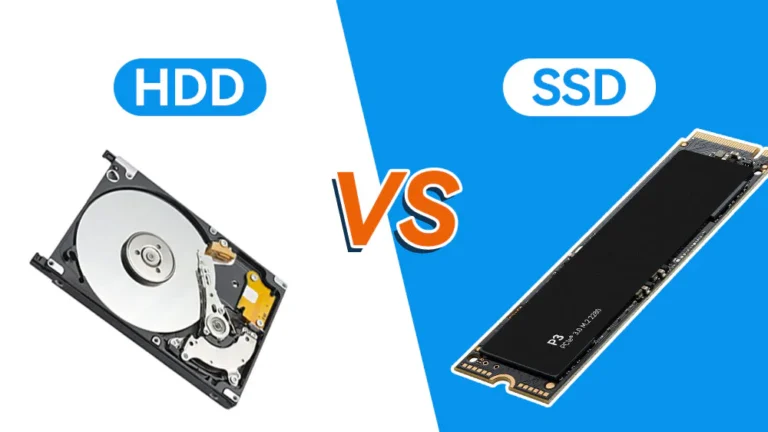
1. External Hard Drives (HDDs & SSDs)
Best For: The “second copy” in the 3-2-1 rule. Great for large, complete system backups.
Pros: High capacity, low cost per GB (HDDs), fast transfer for restores.
Cons: Mechanical HDDs are sensitive to physical shock. Can fail spontaneously. An always-connected drive is vulnerable to ransomware.
How to Use: Disconnect after backup. Use scheduled backup software to run nightly/weekly, then physically unplug the drive. A backup drive that’s always connected is a target.
2. Network-Attached Storage (NAS)
Best For: Centralized backup for multiple computers/smartphones in a household or small office.
Pros: Always available on your network, can use multiple drives in a RAID configuration for redundancy, can perform automated backups.
Cons: Higher upfront cost and complexity. A NAS is still a local device—if your house floods, it’s gone. It’s also vulnerable to network-aware ransomware.
How to Use: Configure it as a destination for automated backup software on all your devices. Ensure its data is also copied to an offsite location (completing the 3-2-1 rule).
3. Local Backup Software (The “How”)
Your operating system’s built-in tools are a good start, but dedicated software offers more power.
Part 3: The Offsite Lifeline – Cloud Strategies
The “1” in 3-2-1. Protects against local physical disasters.
1. Cloud Backup Services (Set-and-Forget)
These are not the same as Google Drive or iCloud Drive. True cloud backup services (like Backblaze, Carbonite, iDrive) automatically, continuously, and versionlessly back up your entire computer for a flat fee.
2. Cloud Storage with Backup Discipline (Manual)
You can use services like Dropbox, Google Drive, or OneDrive as an offsite copy if you follow a strict rule: You only ever add files to your cloud sync folder; you never delete or alter files there directly. Use a tool like rclone or Duplicati to push an encrypted copy of your local backup to this cloud storage. This is more work but offers more control.
3. The “Cloud NAS” Hybrid
Services like Backblaze B2 or Wasabi offer cheap, durable cloud storage designed as a target for backup software. They are not consumer-facing apps. You use them with software like Duplicati, Arq Backup, or rclone. This is the most cost-effective and flexible method for tech-savvy users backing up large datasets (e.g., a NAS).
Part 4: Building Your 3-2-1 System – Practical Blueprints
Here’s how to translate theory into a scheduled, automated practice.
Blueprint A: The Simple & Robust (For Most People)
Copy 1: Your live data on your computer’s internal drive.
Copy 2 (Local, Different Media): An external hard drive, using Time Machine (Mac) or Veeam Agent (Windows) to perform a nightly system image backup. Drive is disconnected when not in use.
Copy 3 (Offsite): Backblaze Personal Backup running continuously in the background for $7/month.
Result: You are protected against drive failure (restore from external drive), theft/fire (restore from Backblaze), and ransomware (you can roll back to yesterday’s backup from either source).
Blueprint B: The Power User / Small Office Setup
Copy 1: Live data on computers.
Copy 2 (Local, Different Media): A NAS with a 2-drive RAID 1 configuration. All computers back up to it automatically.
Copy 3 (Offsite): The NAS uses rclone or Duplicati to push an encrypted backup of its most critical data to Backblaze B2 or Wasabi cloud storage every night.
Result: Centralized management, fast local restores, and affordable, encrypted offsite storage for the truly important data.
Blueprint C: The Privacy-First, Budget-Conscious Approach
Copy 1: Live data on your computer.
Copy 2 (Local): Two external hard drives. Use Veeam or rsync to back up to Drive A every Monday and Thursday. Use Drive B every Tuesday and Friday. Store one drive in a desk drawer, the other in your car or office (this fulfills a basic “offsite” requirement).
Copy 3 (Offsite/Encrypted): Use Duplicati to create an encrypted, deduplicated backup of critical documents and photos, scheduled to upload to your free tier of Google Drive or Dropbox.
Result: Maximum privacy, low cost, and protection against most threats, though it requires more manual drive swapping.
Part 5: The Non-Negotiables: Validation & Security
A backup you haven’t tested is not a backup.
Schedule Verification: Quarterly, pick a random file—a document, a photo—and perform a restore. Can you retrieve it? Does it open? For system images, know how to create and boot from recovery media.
Encrypt Offsite Backups: Any data leaving your physical control (i.e., going to the cloud) must be encrypted. Use your backup software’s encryption feature (with a strong password you will not forget). Backblaze Personal does this automatically.
Document Your Recovery Plan: In a fire, you won’t logically think. Keep a simple note: “Laptop dead. Recovery key is in the safe. Restore from Backblaze using password X. Call [tech-savvy friend].” Store this physically.
Conclusion: Backups Are About Risk Management, Not Technology
Your data’s value is not measured in gigabytes, but in the hours, memories, and opportunities it represents. Implementing the 3-2-1 rule is not a technical chore; it is an act of responsibility for your digital legacy.
Start tonight. Buy an external hard drive and run Time Machine or Veeam. Sign up for Backblaze. Spend one hour setting up what could save you from a hundred hours of despair and irreversible loss. In the world of data, the only true regret is the backup you never made.